About the saved product image
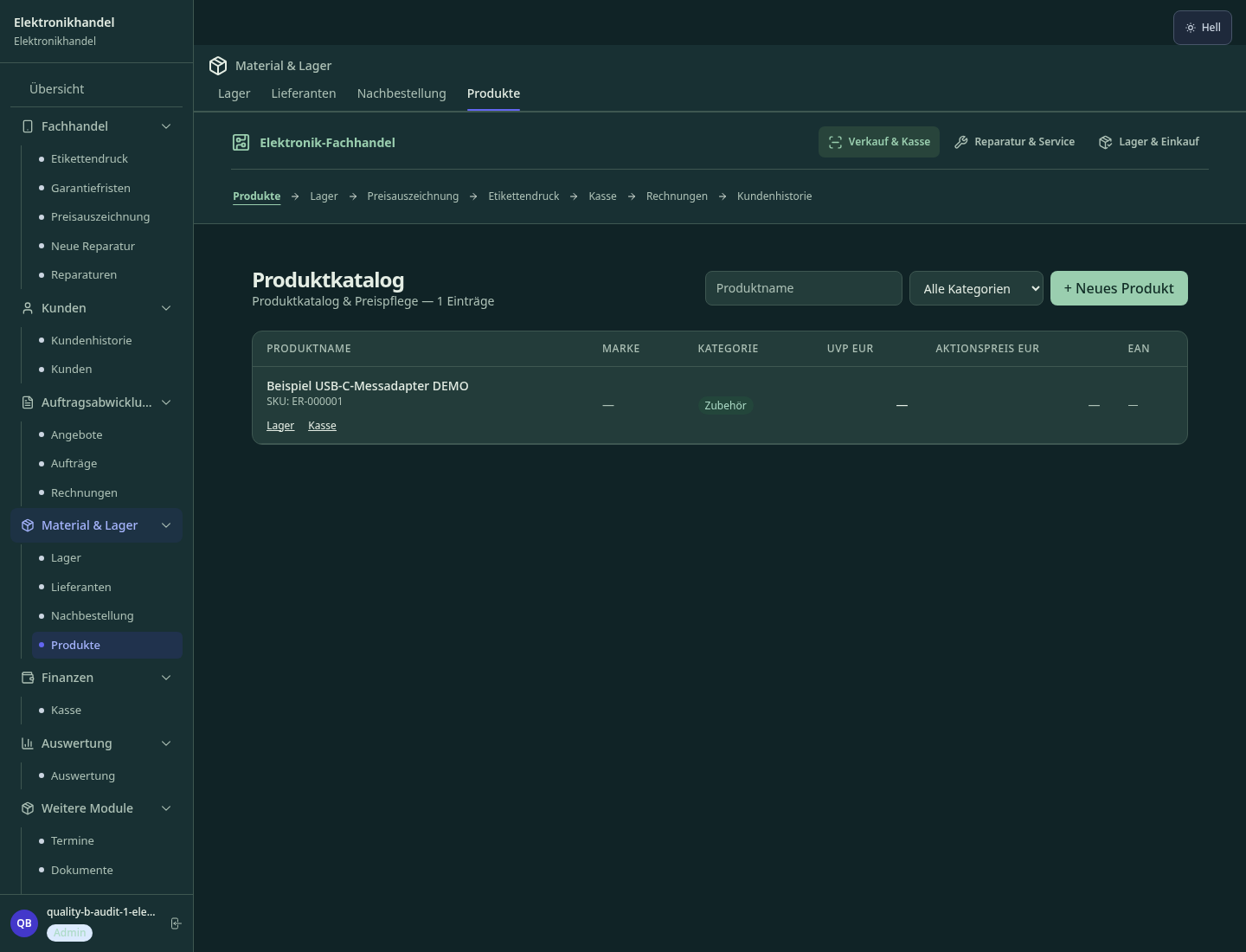
The approved stored example image shows the product catalogue with a fictional USB-C adapter. It is not an image of the repair flow. Manufacturer RMA handling and customer communication need your own arrangements.
Industry solution / Trade & Retail
An electronics counter cannot pause sales while the workshop checks a phone. Keep the sold article, the device left for diagnosis and the customer’s decision in separate, findable records; review stock shortages before you place a supplier order.
Pricing & getting started
Link a repair ticket to the customer, device, serial number and reported fault.
Add diagnosis and estimate; record the customer’s consent before moving into approved repair.
Track EAN, supplier and minimum quantity, then review low-stock items after a counter sale.
How Sektura helps with everyday work
Illustrative day in a small electronics shop: a customer leaves a phone with a cracked display and asks for a price before any repair. Another customer buys the last charging cable of a popular type. The technician can diagnose the phone later, while the buyer checks which cable has fallen below its chosen stock minimum.
At intake, staff note the customer, device, serial number and reported damage in a repair ticket. The phone is identifiable even though a diagnosis is still pending.
After inspection, the technician records the diagnosis and estimate. Staff obtain the customer’s answer themselves and only then mark approval; the workflow blocks later repair stages without it.
The cable sale uses the catalogue item at the counter. The low-stock view groups the shortage with its supplier, so the buyer can check quantities before ordering.
The repair and the replenishment need remain visible to the right staff without implying that the software contacted the customer or the supplier.
Getting started is simple
Start with one device and one fast-moving accessory. Enter the article price, SKU or EAN, quantity, minimum quantity and supplier; inspect how both appear in the catalogue and stock view.
Run a fictional counter sale of the accessory. Check its receipt and changed quantity, then open the reorder view to see whether the chosen minimum has been crossed.
Create a sample phone repair with a serial number and fault. Walk through diagnosis, estimate, customer approval and collection to see where your team must make a real decision.
The approved stored example image shows the product catalogue with a fictional USB-C adapter. It is not an image of the repair flow. Manufacturer RMA handling and customer communication need your own arrangements.
No credit card is needed to start your trial.
Industry solution
Electronics shops
Editorial workflow draft — not a product screenshot.
A customer brings a phone with a damaged screen to the shop.
Record the device and serial number at intake.
Discuss the damage and estimate with the customer.
Note approval and collection arrangements for the repair.
The repair scope and customer decision are recorded.
Record every device with IMEI and serial number – for warranty, repair and return
Record repair status and customer approval in the ticket.
Record warranty dates and review each claim.
Record trade-ins and condition; verify identity separately.
Monitor minimum stock and place orders yourself.
Less paperwork
These features are included in every sektura solution.
Customer records with full project history for all ElectronicsRetailDesk jobs and relevant contact and location information.
Invoices for ElectronicsRetailDesk services under local law. Automatic numbering, PDF export and dunning management.
Appointments for ElectronicsRetailDesk deployments with GPS address, staff assignment and automatic email reminders.
All ElectronicsRetailDesk documents managed centrally: plans, protocols, warranties, certificates and manufacturer documentation.
ElectronicsRetailDesk jobs with industry-specific fields, status tracking and automatic cost calculation.
Reports for ElectronicsRetailDesk: revenue by service type, utilisation, averages and profitability per job.
Vote on new ElectronicsRetailDesk features. Which functions matter most? Your vote counts in product development.
Getting started is simple
Set up service catalogue with prices and SLAs
Configure imei/serial number tracking and enter initial data
Record repair status and customer approval in the ticket.
Record warranty dates and review each claim.
Create the first invoice or quote and test the workflow
Before you switch, we check which data we can transfer from your existing system.
JTL · plentymarkets · Lightspeed · ready2order
Germany · Austria · Switzerland · United Kingdom · France · Spain · Italy · Netherlands · Poland · Portugal · Sweden · Denmark · Norway · Finland · Czechia · Romania · Hungary · Türkiye · Russia · Ukraine · Indonesia · Vietnam · Thailand · Saudi Arabia · China · Japan · South Korea · India · Greece · Croatia · Serbia · Bulgaria · Slovakia · Slovenia · Lithuania · Latvia · Estonia · Albania · Malaysia · Philippines · Bangladesh · Pakistan
04 / Getting started
Choose your industry, country and billing cycle. You will see the corresponding industry price; book add-ons separately when needed.
days free trial
No credit card is needed to start your trial.
No credit card is needed to start your trial.
Add-ons are billed separately in EUR. Displayed prices reflect your selected country and billing cycle.

Job management for car workshops and garages

Software for bicycle workshops – manage repair jobs, customer bikes, e-bike service and invoices efficiently.

Software for florists – fresh management of orders, delivery dates, occasions and client data.

From the timber yard to a confirmed delivery.